The Power of Low-Content Books
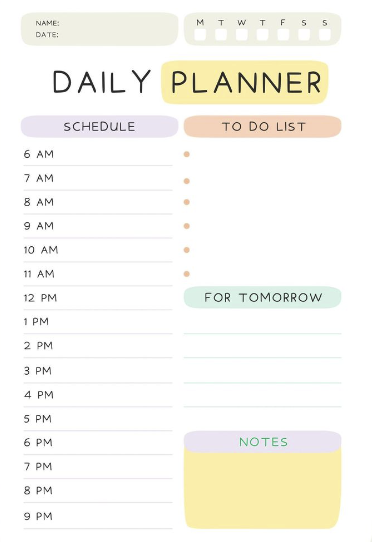
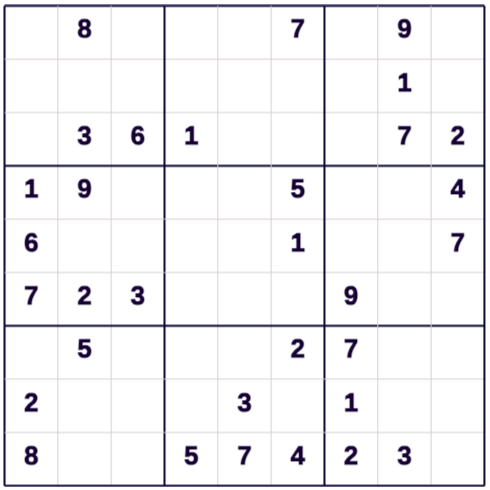
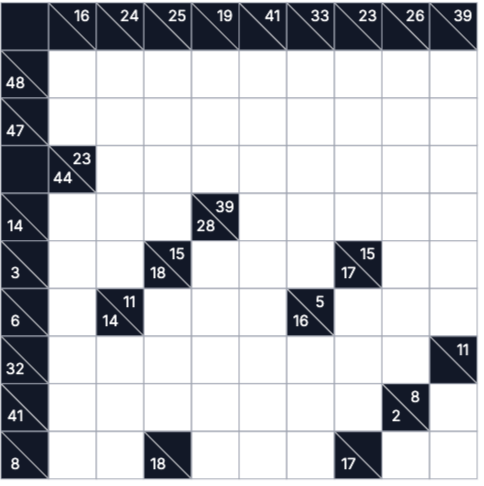
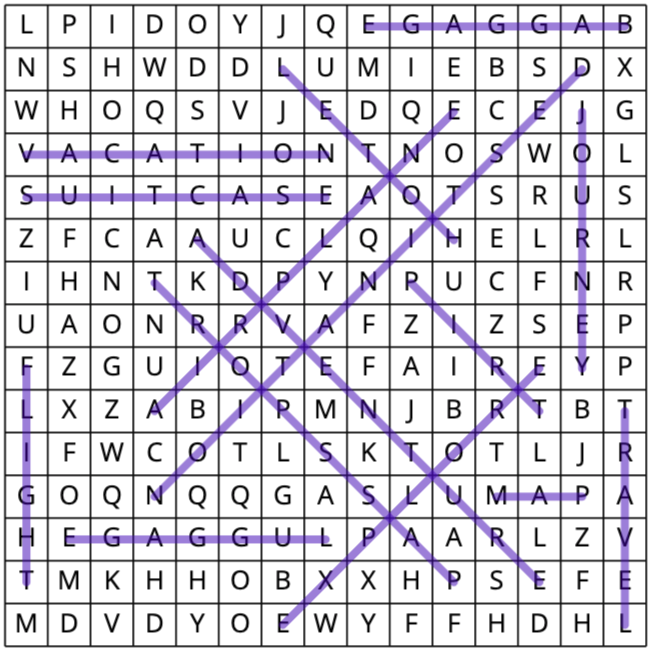
Journals and planners are the backbone of many successful KDP businesses. They are faster to produce than novels but offer high utility to buyers. The key to standing out is customization—moving beyond simple lined pages to create value-packed "Guided Journals."
Pro Tip: Don't just sell a "Notebook." Sell a "90-Day Fitness Tracker" or a "Gardening Log Book." Niche functionality sells much better than generic lines.
Step-by-Step: Creating Your Planner
Choose your book type
Are you making a simple lined notebook, a dated daily planner, or a specialized log book? Defining this first helps you choose the right tools and trim size (e.g., 6x9" vs 8.5x11").
Select a template or use AI Designer
Speed: Use our pre-made templates for common formats like "Weekly Planner"
or "Recipe Book."
Custom: Use the AI Designer to quickly design an interior either by
uploading an image or writing your prompt describing the page you want to design.
Customize the interior
Make it unique. Add specific prompts (e.g., "Today I am grateful for..."), habit trackers, mood meters, or water intake logs. Adjust the line spacing (college ruled vs wide ruled) to suit your audience.
Duplicate and arrange pages
Build the bulk of your book. If you're making a 100-page journal, you can duplicate your custom layout instantly. For planners, our tool automatically updates the dates on sequential pages.
Download
Export your interior as a high-resolution PDF. It comes perfectly sized with the correct bleed settings for Amazon KDP, ensuring no content gets cut off during printing.
Frequently Asked Questions
Can I sell these templates as my own?
Yes. Once you export a PDF from BooksGenie, you own the commercial rights to that specific design layout for publishing on KDP.
How do I make a dated planner?
Our tool has a "Smart Date" feature. You simply select the start date (e.g., Jan 1, 2025) and it automatically fills in the correct dates on subsequent pages.
What is "Bleed"?
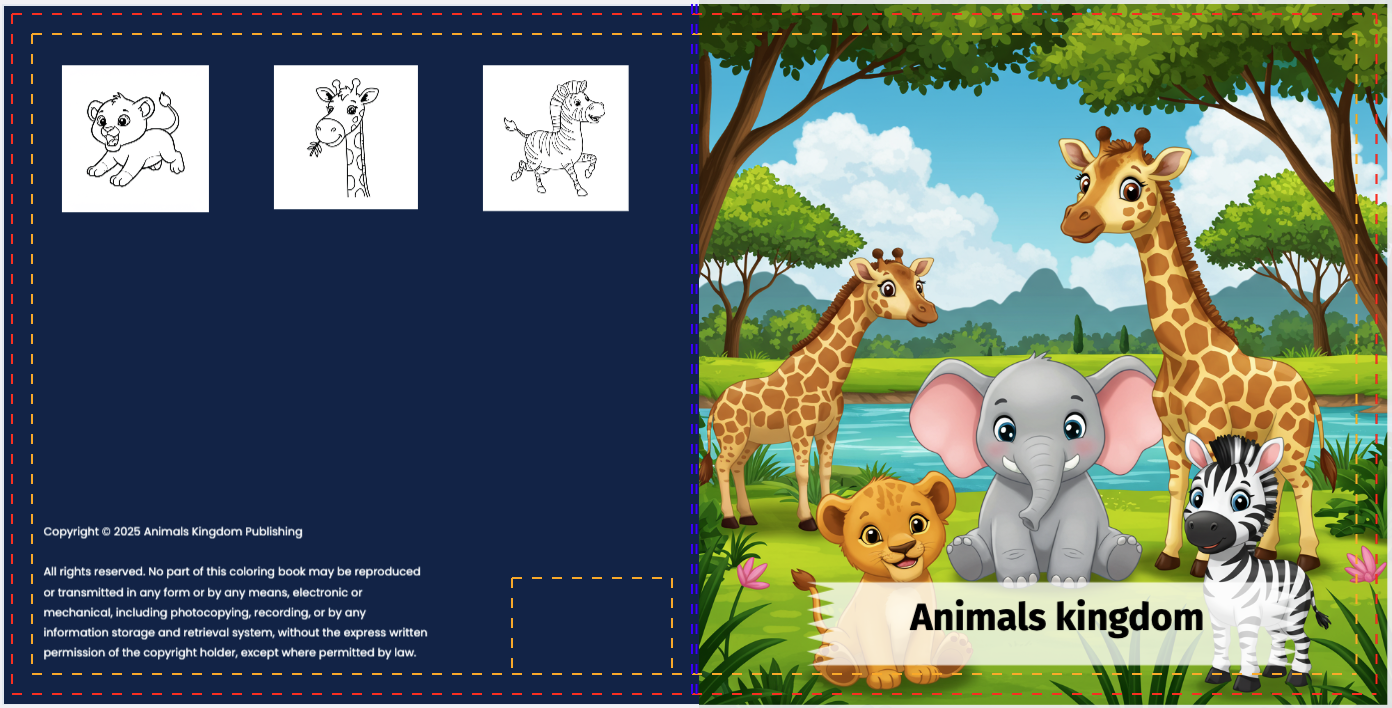
Bleed allows images or lines to extend to the very edge of the paper. For journals with lines or patterns that go to the edge, select "Bleed" in your KDP settings.